If you require an invoice for your purchase and did not request one at the time of placing your order, you can do so from your user account. Depending on whether you placed the order as a registered user or as a guest user, follow one of these processes:
Invoice request for registered users.
In order for us to issue an invoice for your order, you must first enter your billing details directly in the customer area of our website.
Here are the steps to follow:
1. Log in to your account and click on the user icon to access your personal area.
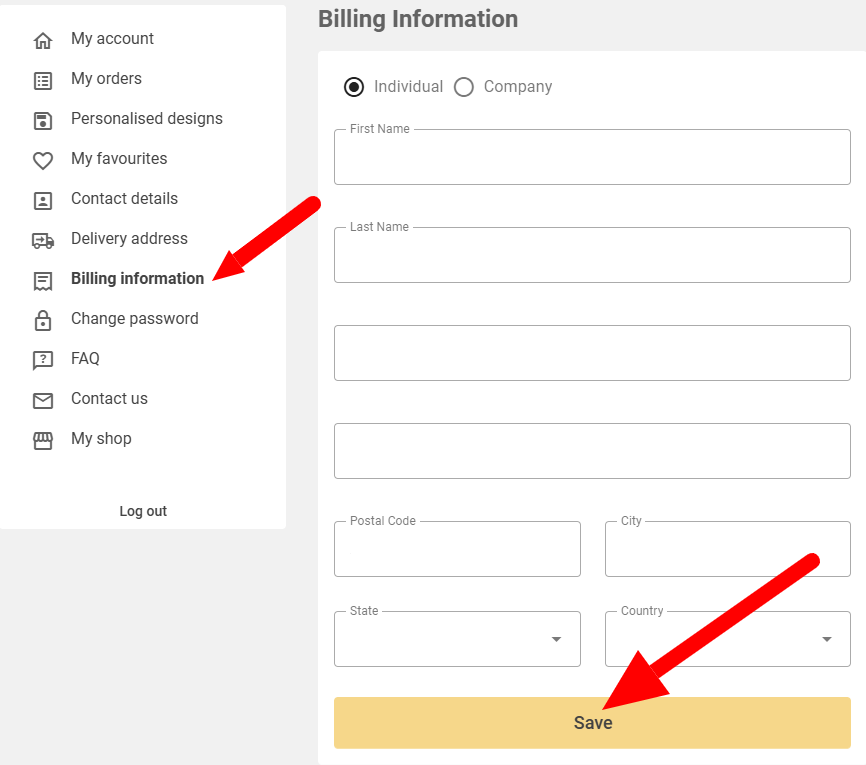
2. In the customer area menu, select ‘Billing details’.
3. On the form, select whether you are an individual or a company and fill in all the required fields (name, tax identification number, address, etc.).
Do not forget to click on the ‘Save’ button.
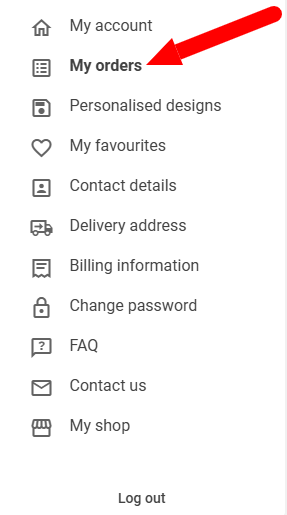
4.Once you have filled in your tax details, go to the ‘My orders’ menu.
 5. Select the order for which you wish to request an invoice (View details) and then click on ‘Request invoice’ at the bottom.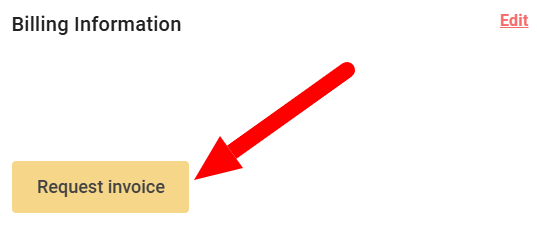
A message will appear confirming that we have received your request.
Between 24 and 48 hours after placing your order, you will receive the invoice in your email.
Invoice request for guest user.
If you have not registered or logged in before placing your order, please follow these steps:
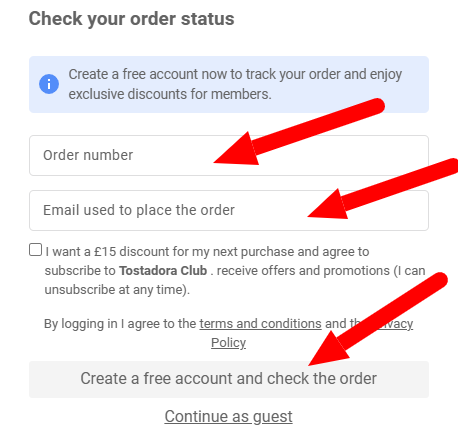
1. Go to ‘Check the status of your order’ and enter the order number and the email address you used to make the purchase.
2. Select create a free account
3. In your customer area, you will see your order. Click on ‘View details’.
4. In the ‘Billing details’ section, click on ‘Edit’ to complete your billing details.
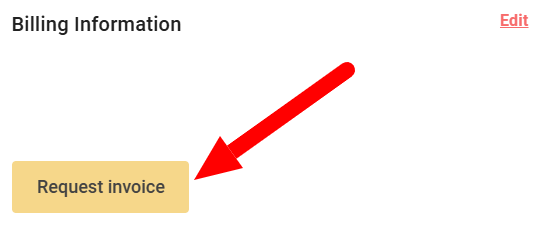
5. Finally, in the order details, click on ‘Request invoice’.
A message will appear confirming that we have received your request.
Between 24 and 48 hours after placing your order, you will receive the invoice in your email.