Collections allow you to organize your designs and products by theme or occasion, improving navigation and the shopping experience in your store.
1. What are collections?
Collections are thematic groupings of designs and products within your store. They allow you to organize your catalog by themes, styles, or occasions (for example: "Father's Day," "Manga & Anime," "Pets"), making it easier for your customers to quickly and easily find what they're looking for.
When a customer visits your store, they will see the active collections as visual cards with images of your products. Clicking on a collection automatically filters the products within that theme.
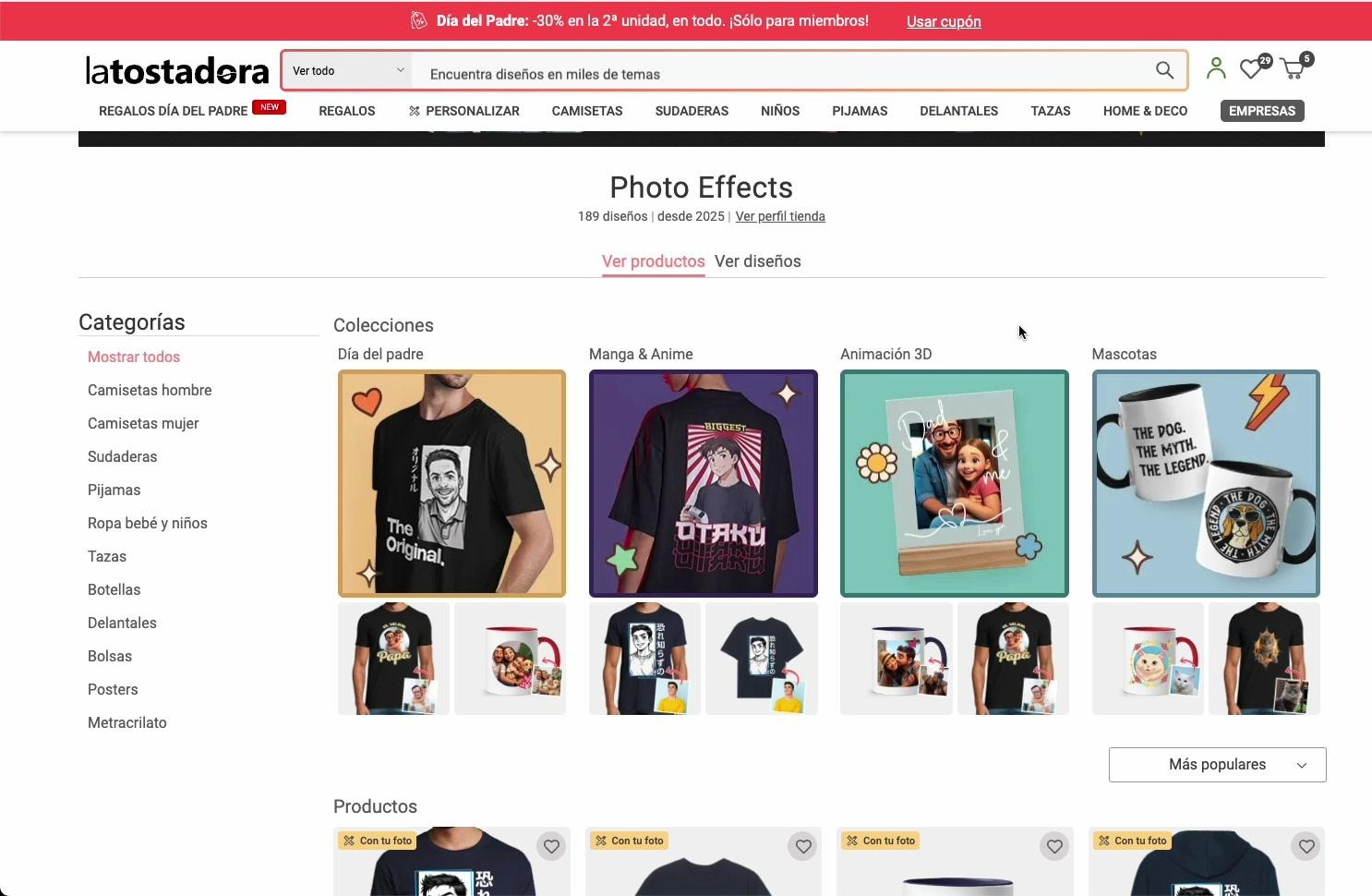
View of the collections in the store (desktop)
2. How do I access collection management?
To manage your collections, log in to your designer account and follow these steps:
Access the Store Menu in the left side panel.
Select the store from the "Selected store" dropdown menu .
Click on "Collection Management" .
You will arrive at the "My Collections" page , where you can view, create, edit, and delete your collections.
"My Collections" page in the designer area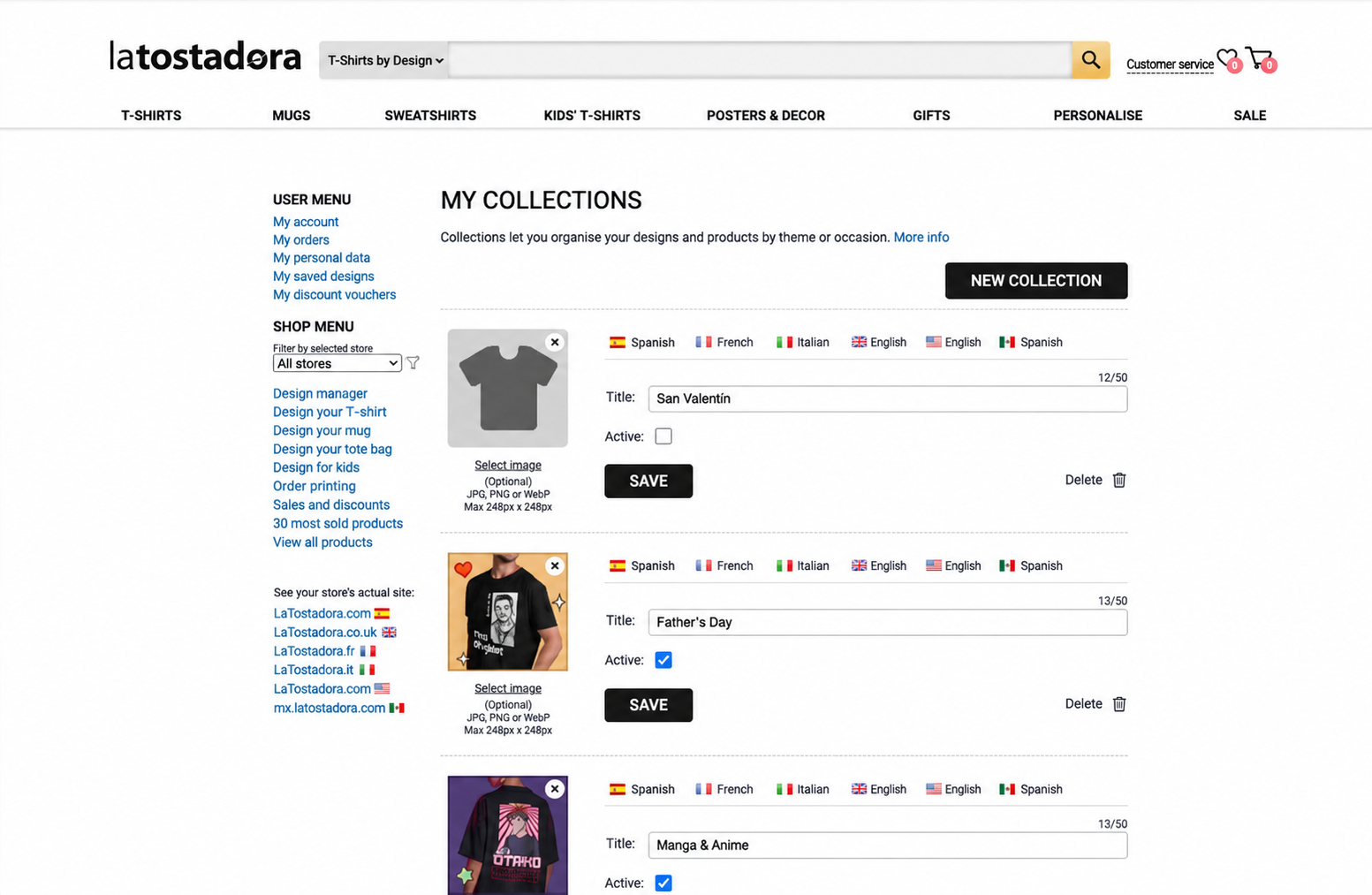
3. How do I create a new collection?
On the "My Collections" page, click on the "NEW COLLECTION" button (top right corner).
A new collectible card will be created at the top of the list.
Write a title for the collection (maximum 50 characters). The character counter will help you keep track.
(Optional) Upload a cover image by clicking "Upload image". Accepted formats: JPG, PNG, or WebP. Maximum size: 248x248px.
Check the "Active" box if you want the collection to be visible in your store.
Click on "SAVE" .
4. How do translations work?
If your store is active on multiple domains (for example, latostadora.com, tostadora.co.uk, tostadora.fr), you'll see flags for the available languages next to each collection. Click on each flag to enter the title in the corresponding language.
If you don't provide translations , the system will automatically generate them from the default language when saving the collection. If your store is only active on one domain, language flags will not be displayed.
5. How do I assign collections to my designs?
On the "Design Management" page , each design has a multi-select collection selector. You can assign a design to one or more collections by selecting them from the dropdown menu. The selected collections will appear as colored labels that you can remove with the "x".
Note: When you assign a design to collections, all products created from that design will automatically inherit those collections.
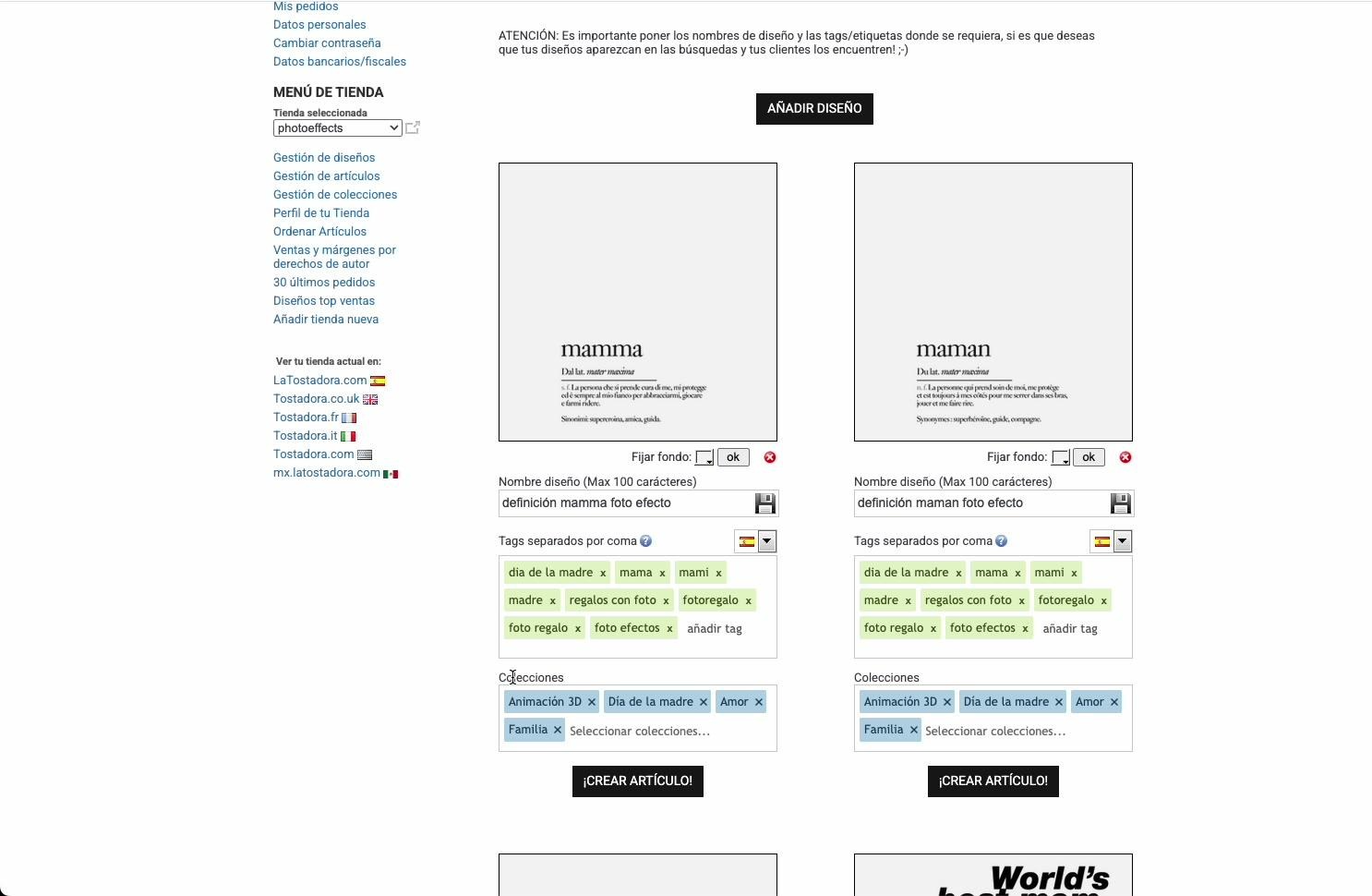
Collection selector in "Design Management"
6. Can I assign collections to individual products?
Yes. On the "My Items" page (Item Management) , each product also has its own collection selector. By default, products inherit the collections from the parent design, but you can:
Add additional collections that are not in the design.
Remove inherited collections only for that specific product (without affecting the parent design).
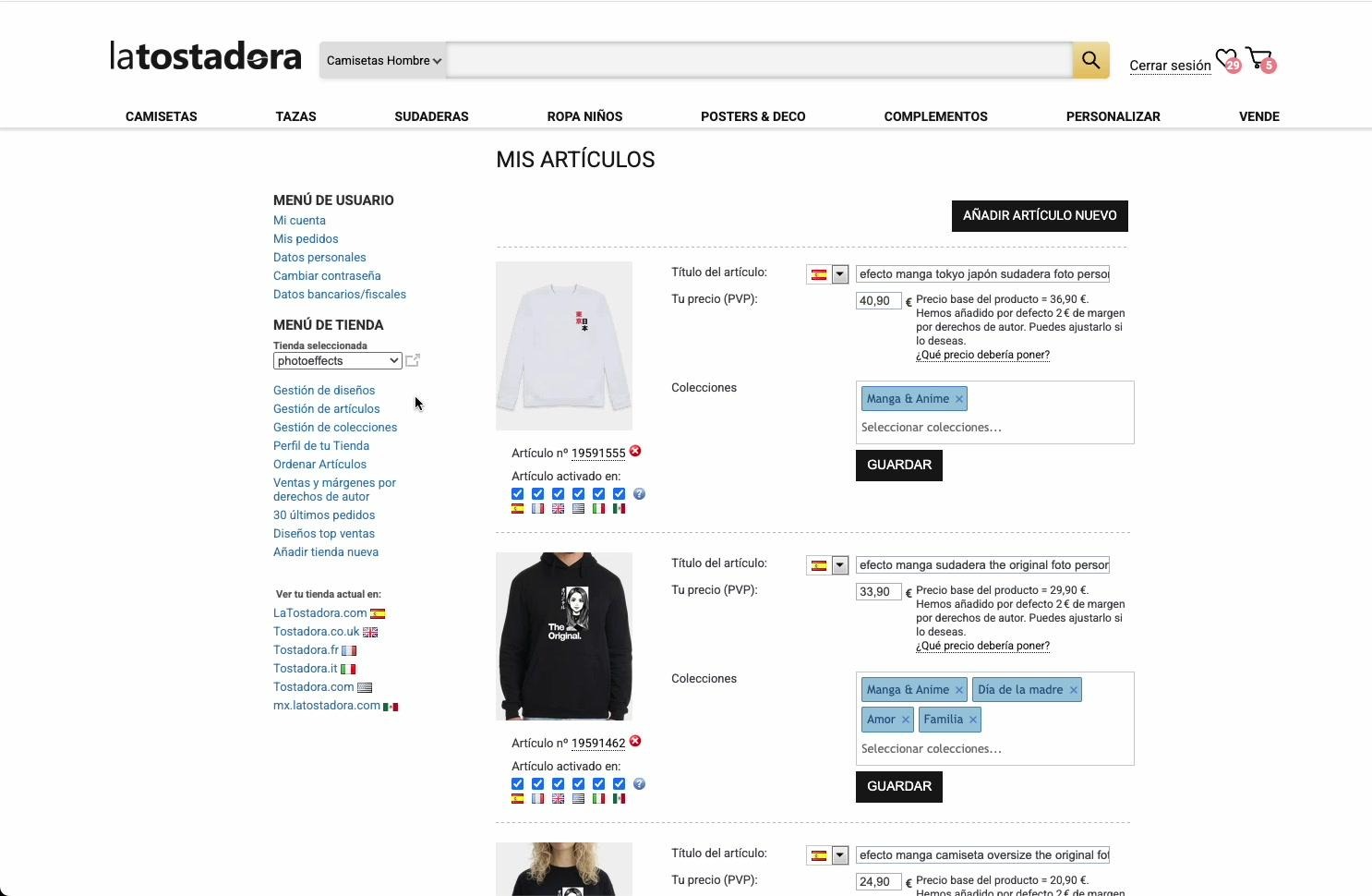
Collection selector in "My Items"
7. When are the collections displayed in my store?
A collection will only appear in your store window if it meets these two conditions:
The collection is marked as "Active" .
It has at least 5 active products in the corresponding domain.
If no collection meets these requirements, the "Collections" section will not appear in the store. Inactive collections remain editable in the designer area but are not visible to customers.
8. How do customers view the collections?
Customers will see the "Collections" section on your shop page, just above the product listings. Each collection is displayed as a card with a main image (your cover photo or most popular product) and two secondary images of popular products. Clicking on a card filters the products in that collection.

View of products filtered by collection ("Father's Day")
Within a collection, customers can:
Filter by product category (t-shirts, mugs, sweatshirts...) using the side menu.
Sort by "Most Popular" or "Most Recent".
Return to the full list by clicking on "← View all products" .
9. Can I edit or delete a collection?
Edit: From "My Collections," you can modify the title, cover image, and active/inactive status of each collection at any time. Remember to click "SAVE" after each change.
Delete: Click "Delete" next to the collection you want to delete. You'll be asked to confirm. Deleting a collection removes all relationships with designs and products, but the designs and products themselves are not deleted.
10. Tips and best practices
Use clear and descriptive names that your customers can instantly understand (e.g., "Father's Day", "Pets", "Manga & Anime").
Make sure you have at least 5 active products per collection to be visible in the store.
Upload an attractive cover image to stand out. If you don't upload one, the image of your most popular product will be used automatically.
Keep your translations up to date if your store is in multiple languages. Automatic translations are a good starting point, but proofreading them improves the customer experience.
Maximum 30 collections per store. Plan your themes to maintain a clear and useful organization.
Deactivate seasonal collections when they are no longer relevant, instead of deleting them. This way you can easily reactivate them in the future.