To remove the background from an image, you need to convert the file to a PNG with a transparent background (or with an alpha channel, which is essentially the same thing). With PNG, the image will appear exactly as it will be printed.
In this example, we'll transform this JPG with a white background into a PNG with a transparent background. To do this, we need to remove the white color from the background.
Here's how to convert JPEG to PNG using Adobe Photoshop:
1. Open your JPG file with Photoshop
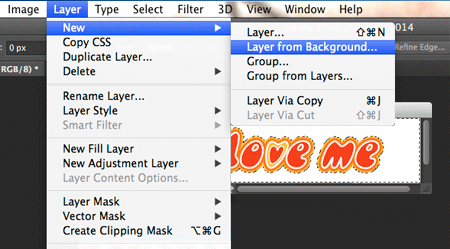
2. In the menu, select: Layer/New/Background from Layer (Layer 0)

3. In the Layers control panel, create a new layer (Layer 1)
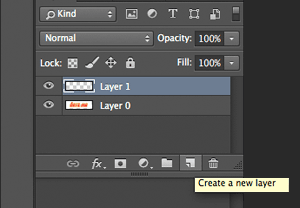
4. Reorder the layer order by clicking on Layer 0 and dragging the mouse upwards (Layer 1 must be first, then Layer 0).
5. If you don't already have Layer 0 selected, do so (in the box on the right).
6. If there are parts of your image that you want to be transparent, you need to remove them. You can do this with the "lasso tool" or the "magic wand tool" on the left:
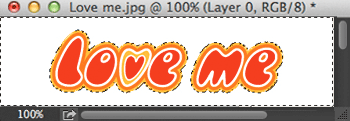
7. Once you've selected what you want to delete, remove it with "delete". We'll know we're seeing the background when we see this checkerboard pattern:
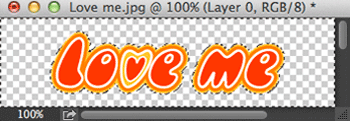
8. When we have finished cleaning the parts we want to make transparent, we will save in PNG format: File/Save as/... and selecting PNG(*.PNG) as the output format.
9. Now you can upload your file to LaTostadora and design your t-shirt!