Collections allow you to organise your designs and products by theme or occasion, improving navigation and the shopping experience in your shop.
1. What are collections?
Collections are thematic groupings of designs and products within your shop. They allow you to organise your catalogue by themes, styles, or occasions (for example: "Father’s Day", "Manga & Anime", "Pets"), making it easier for your customers to find what they are looking for quickly and visually.
When a customer visits your shop, they will see active collections as visual cards featuring images of your products. Clicking on a collection automatically filters the products within that theme.
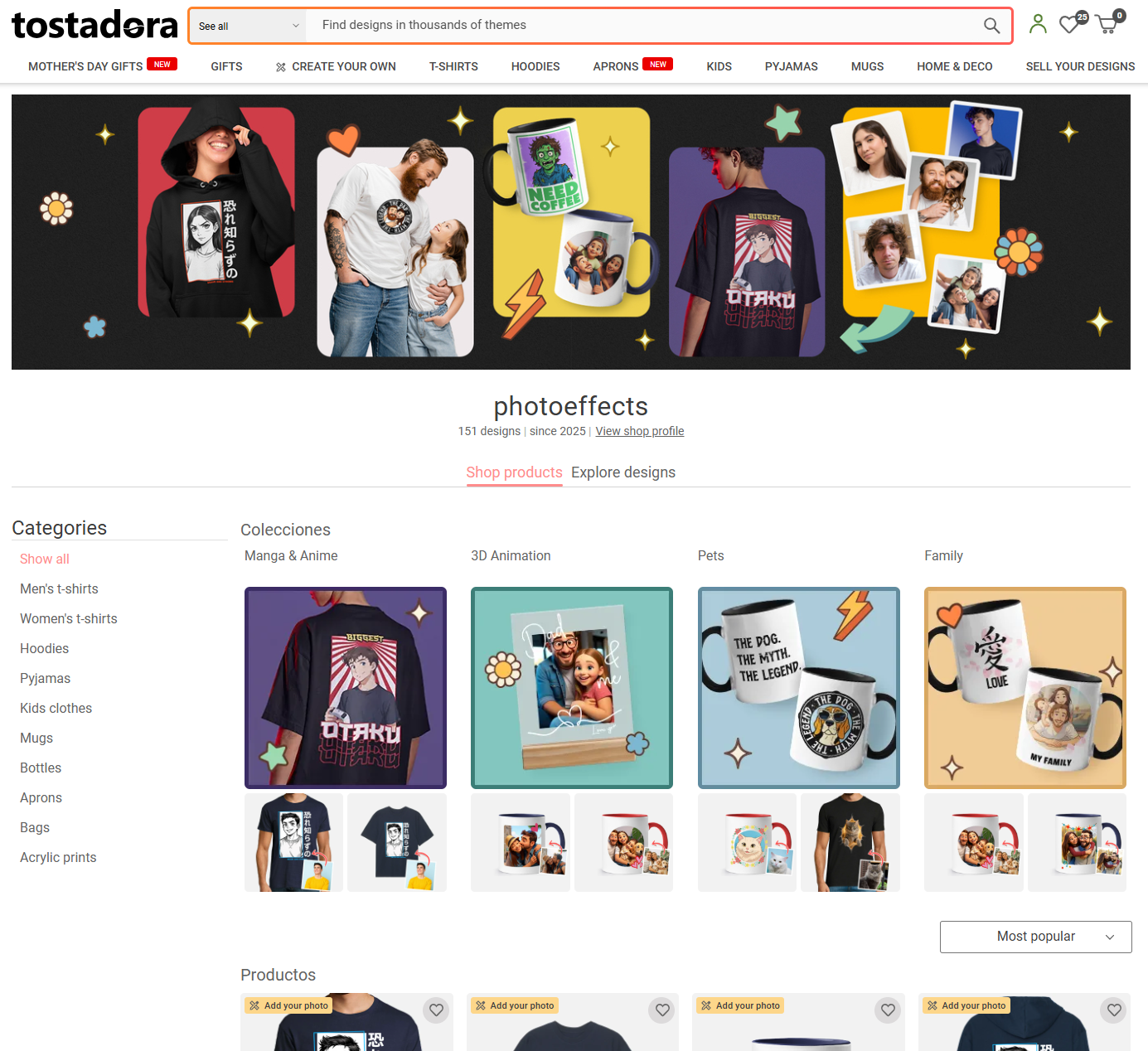
Store view of the collections (desktop)
2. How do I access collection management?
To manage your collections, log in to your designer account and follow these steps:
Access the Shop Menu in the left-hand sidebar.
Select the shop from the "Selected Shop" dropdown menu.
Click on "Collection Management".
You will arrive at the "My Collections" page, where you can view, create, edit, and delete your collections.
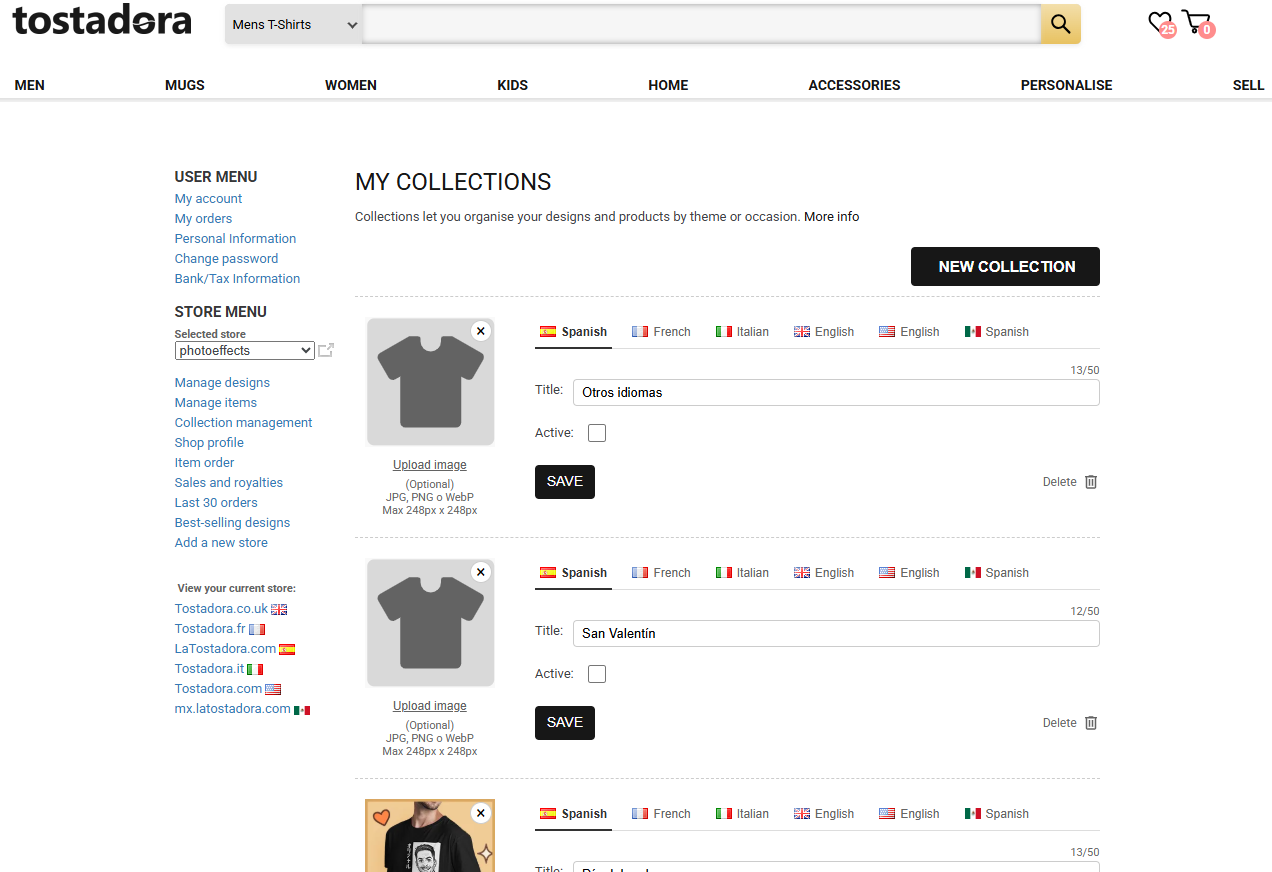
‘My Collections’ page in the designer's area
3. How do I create a new collection?
On the "My Collections" page, click the "NEW COLLECTION" button (top right corner).
A new collection card will be created at the top of the list.
Enter a title for the collection (maximum 50 characters). The character counter will help you keep track.
(Optional) Upload a cover image by clicking "Upload Image". Accepted formats: JPG, PNG, or WebP. Maximum size: 248x248px.
Check the "Active" box if you want the collection to be visible in your shop.
Click "SAVE".
4. How do translations work?
If your shop is active on multiple domains (for example, latostadora.com, tostadora.co.uk, tostadora.fr), you will see the flags of the available languages next to each collection. Click on each flag to enter the title in the corresponding language.
If you don’t provide translations, the system will automatically generate them from the default language when saving the collection. If your shop is active on only one domain, the language flags will not be displayed.
5. How do I assign collections to my designs?
On the "Design Management" page, each design has a multi-select collection selector. You can assign a design to one or more collections by selecting them from the dropdown. The selected collections will appear as coloured tags, which you can remove by clicking the "x".
Note: When you assign a design to collections, all new products created from that design will automatically inherit those collections.
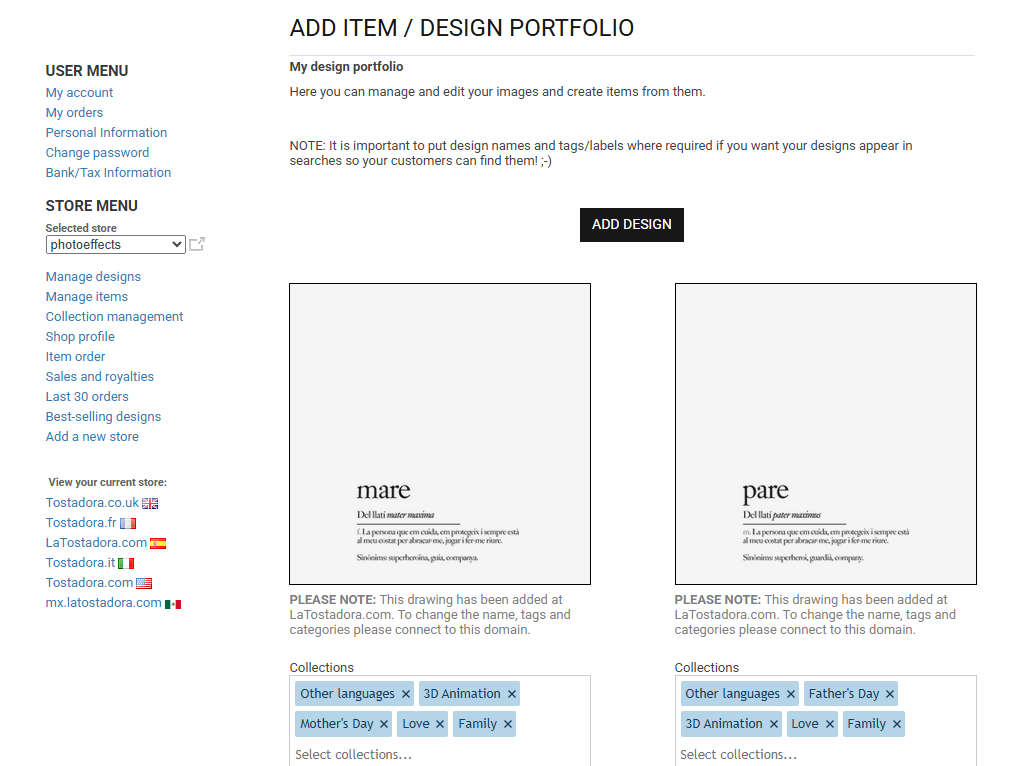
Collection selector in ‘Manage Designs’
6. Can I assign collections to individual products?
Yes. On the "My Items" page (Item Management), each product also has its own collection selector. By default, products inherit the collections from the parent design, but you can:
Add additional collections that are not in the design.
Remove inherited collections only for that specific product (without affecting the parent design).
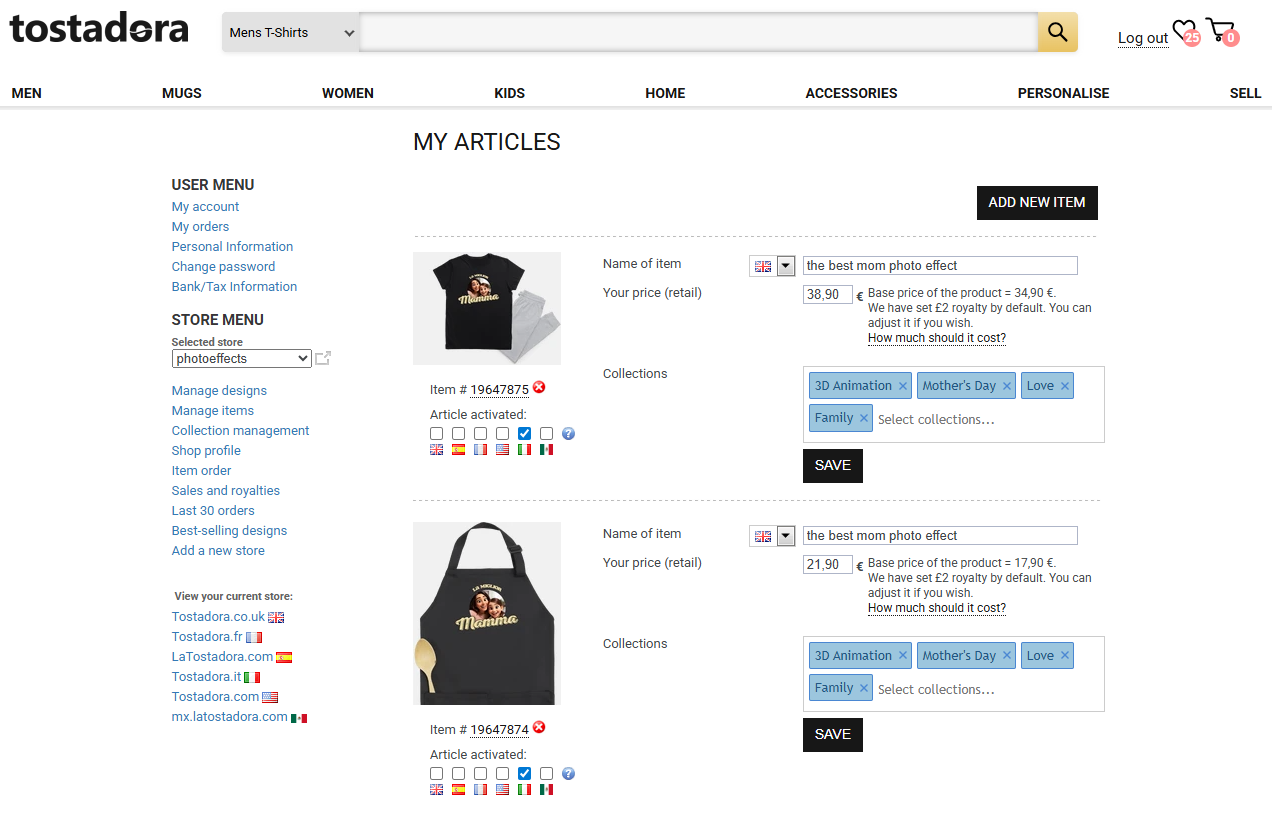
Collection selector in ‘Manage Items’
7. When are collections shown in my shop?
A collection will appear in your shop’s showcase only if it meets both of the following conditions:
The collection is marked as "Active".
It has at least 5 active products on the corresponding domain.
If no collection meets these requirements, the "Collections" section will not appear in the shop. Inactive collections can still be edited from the designer area but are not visible to customers.
8. How do customers see the collections?
Customers will see the "Collections" section on your shop page, just above the product listing. Each collection is displayed as a card with a main image (your cover or the most popular product) and two secondary images of popular products. Clicking on a card filters the products within that collection.
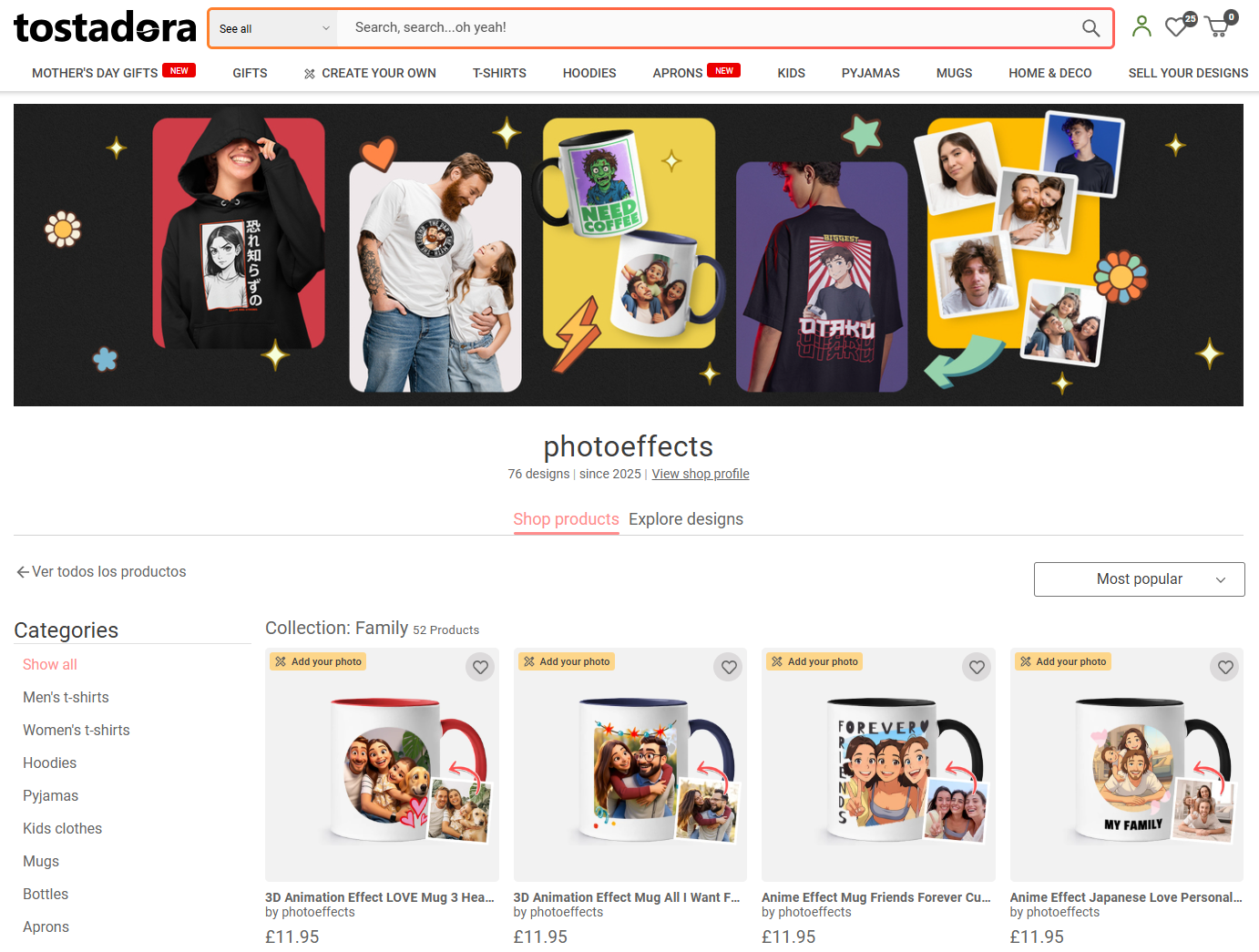
View of products filtered by collection (‘Family’)
Within a collection, customers can:
Filter by product category (t-shirts, mugs, hoodies…) using the side menu.
Sort by "Most Popular" or "Most Recent".
Return to the full listing by clicking "← View All Products".
9. Can I edit or delete a collection?
Edit: From "My Collections," you can modify the title, cover image, and active/inactive status of each collection at any time. Remember to click "SAVE" after each change.
Delete: Click "Delete" next to the collection you want to remove. You will be asked to confirm. Deleting a collection removes all links with designs and products, but the products themselves are not deleted.
10. Tips and best practices
Use clear and descriptive names that your customers can understand at a glance (e.g., "Father’s Day", "Pets", "Manga & Anime").
Make sure each collection has at least 5 active products to be visible in the shop.
Upload an attractive cover image to stand out. If you don’t upload one, the image of your most popular product will be used automatically.
Keep translations up to date if your shop is available in multiple languages. Automatic translations are a good starting point, but reviewing them improves the customer experience.
Maximum 30 collections per shop. Plan your topics to ensure your organisation remains clear and practical.
Turn off seasonal collections when they are no longer relevant, rather than deleting them. That way, you can easily reactivate them in the future.
Do you have any more questions? Contact our customer service team